Device / Live View Overview
The device "Live View" page lets you view and interact with a specific device and review its recorded media.
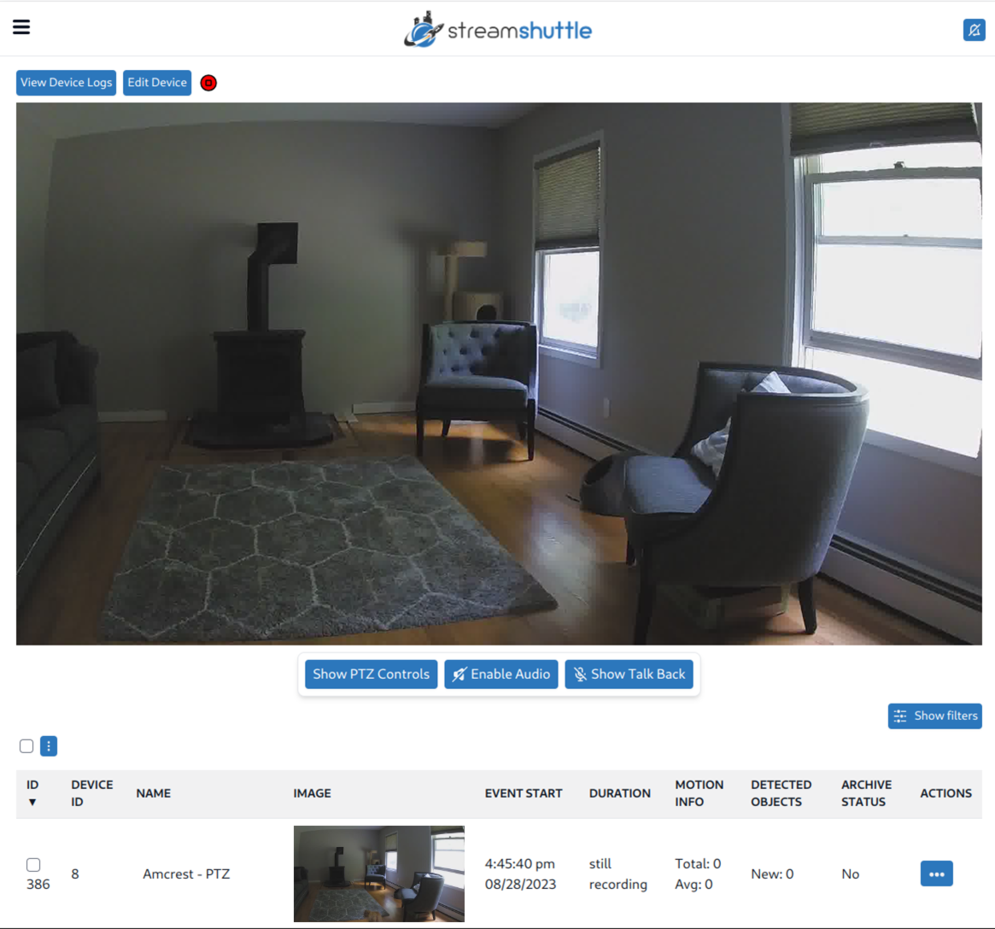
The page starts with "View Device Logs," "Edit Device," and the device start, stop, and trigger controls. The screenshot below shows the default page with the controls available for a running device.
Next is the device stream's live view, which displays a lower-resolution, low-latency video stream. Below the stream are the live interaction options, followed by media events recorded by this device. The list can be empty when the device has no media events.
Live Interaction Options Bar - Options Toggled
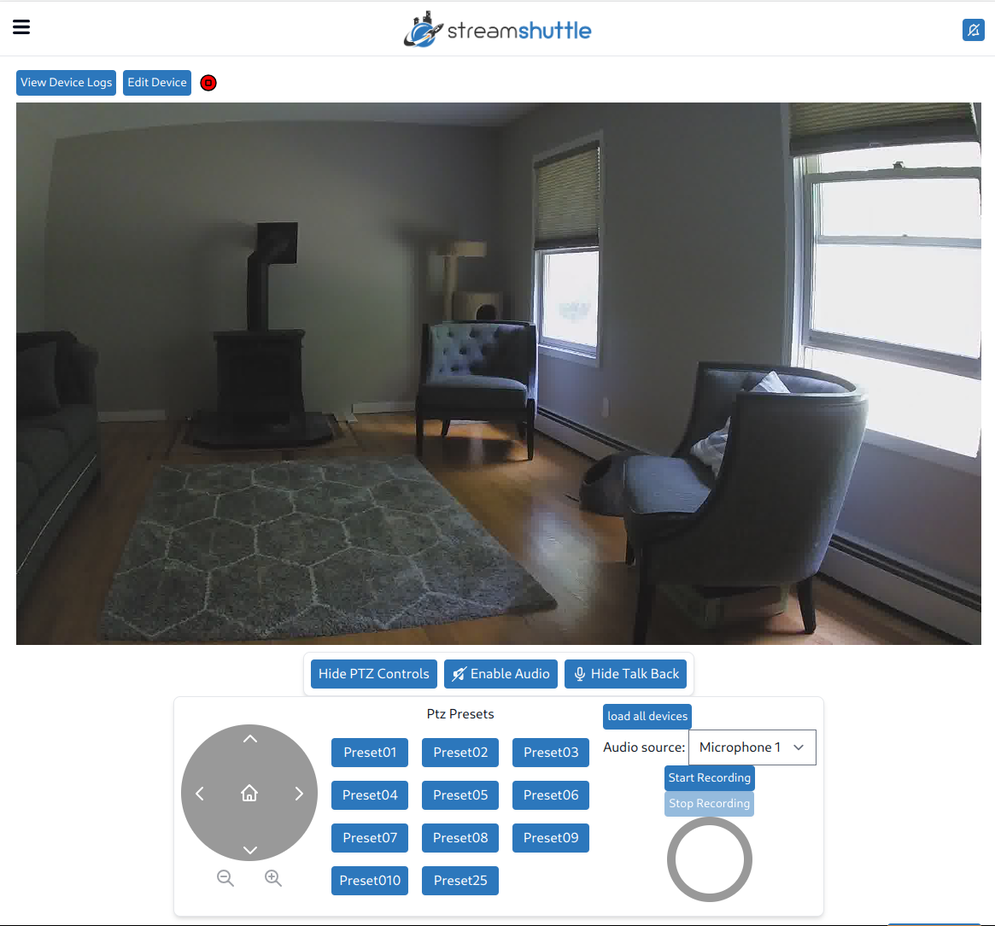
The options available on the bar depend on the features the device supports. Options may include "Show PTZ Controls," "Enable Audio" or "Disable Audio," and "Show Talk Back." The screenshot shows the PTZ and Talk Back panels open.
| Attribute | Description |
|---|---|
| Show PTZ Controls | Toggles the PTZ control panel. |
| Enable Audio / Disable Audio | Toggles live audio playback from the device. |
| Show Talk Back | Toggles the talk back control panel. Press and hold the circle button to record a message for playback on the device. On iOS, you may need to stop and restart recording manually because of a bug that repeatedly requires microphone authorization. This bug does not occur when using Safari as an installed PWA. |
Below the live interaction options is a list of all events associated with this device. It works like the Media Events list, but is already filtered to show only events from this device.
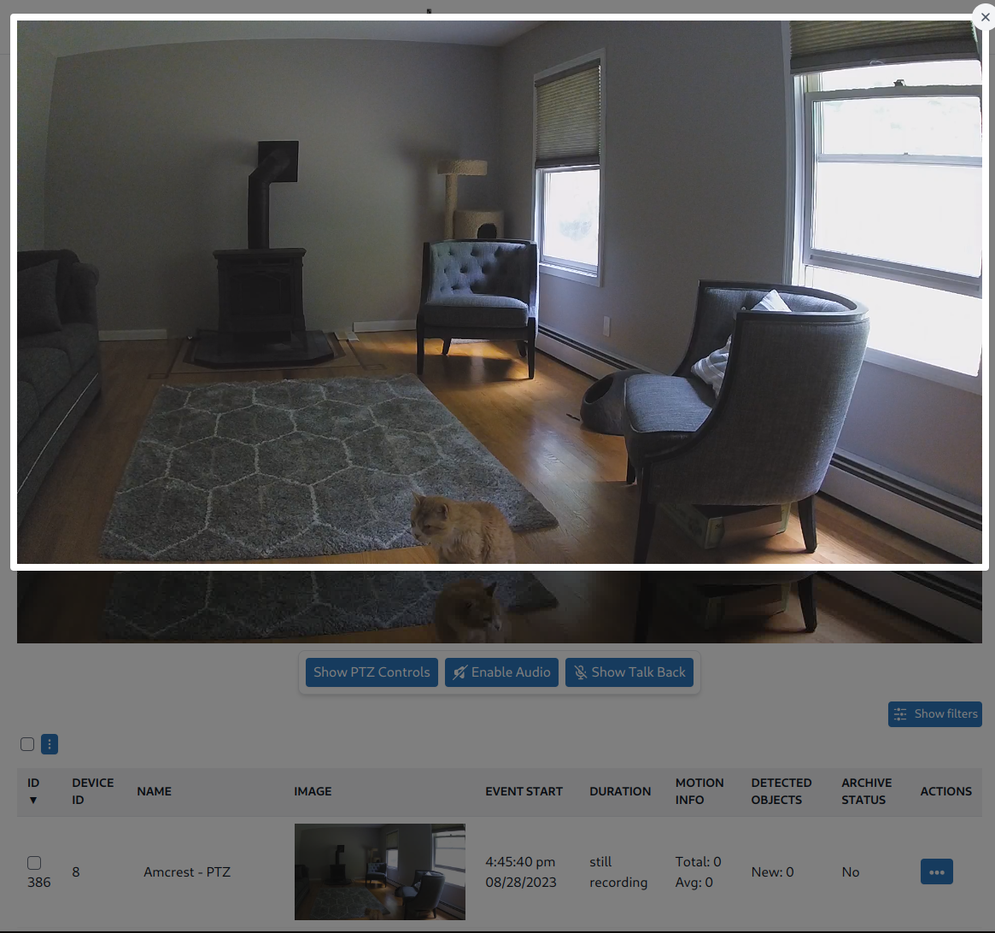
Full Quality Live Stream
Click the live video feed to open the full-quality stream in an overlay. The overlay provides live playback, audio, picture-in-picture, and fullscreen controls.